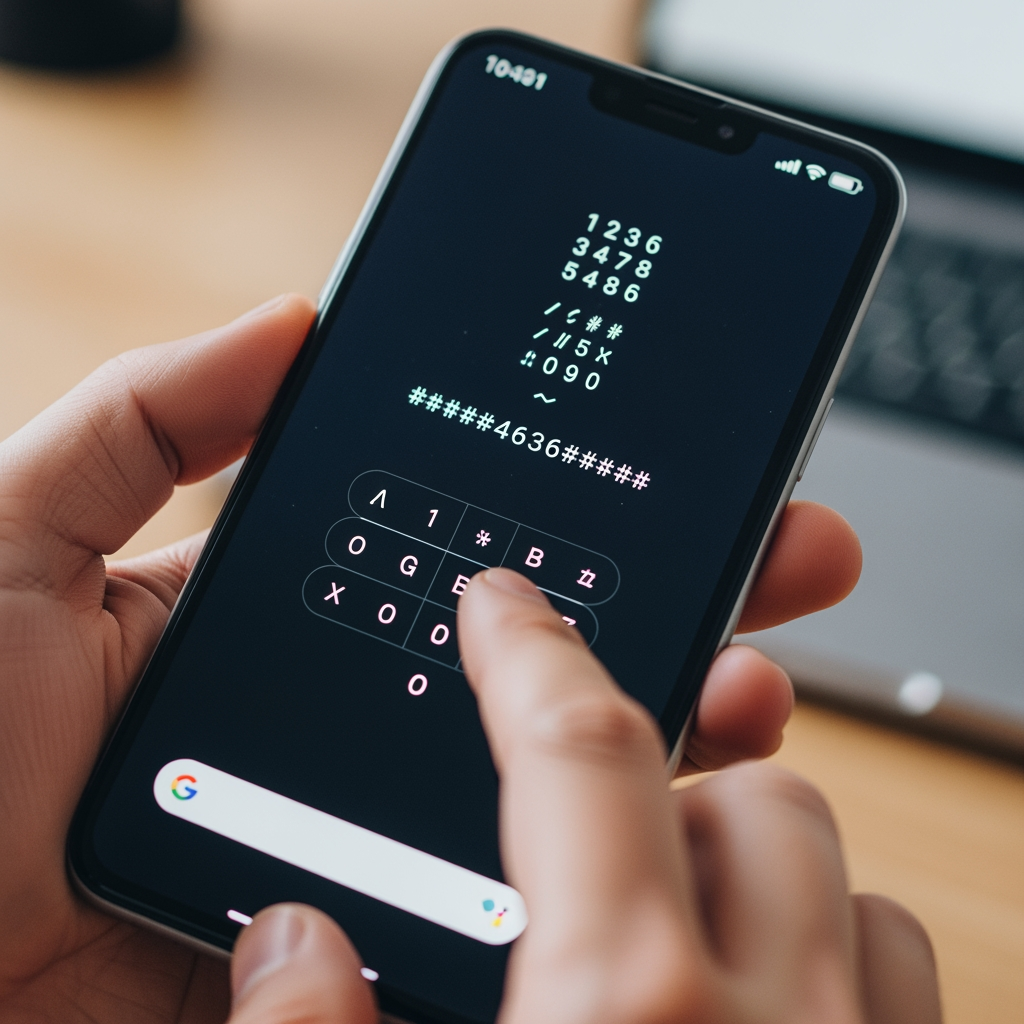
Google Pixel phones are different. As pure Android devices made by Google themselves, they don't come with the extensive diagnostic menus you'll find on Samsung, Xiaomi, or other manufacturer phones. But that doesn't mean secret codes are useless on Pixels you just need to know what actually works and what Google intentionally removed.
Here's what makes Pixel codes unique: Google stripped out most of the traditional factory test modes that other manufacturers leave accessible. They want you using Developer Options, ADB commands, and official diagnostic tools instead. But several useful codes still work, and knowing them can save you time troubleshooting issues or verifying hardware before buying a used Pixel.
I've worked with every Pixel generation from the original Pixel XL to the latest Pixel 8 Pro. What I've learned is that while Pixels have fewer secret codes, the ones that work are actually more reliable and consistent across different Android versions. No manufacturer customization means less variation if a code works on Pixel 6, it probably works on Pixel 8 too.
🔍 Essential Device Information Codes
*#06# - IMEI Number (Universal and Critical)
This works on every phone ever made, including all Pixel models. But it's especially important for Pixels because Google's warranty support is tied directly to IMEI.
Type *#06# and your IMEI appears instantly. If you have an eSIM-capable Pixel (like Pixel 3 and newer), you'll see both physical SIM IMEI and eSIM EID number.
Why this matters for Pixel owners: Google's RMA (return merchandise authorization) process requires IMEI verification. Insurance claims need it. Carrier unlocking needs it. And if you're buying a used Pixel, checking IMEI against Google's blacklist database confirms it's not stolen or insurance-locked.
Real example: Someone offered me a Pixel 7 Pro at 40% off retail. Used *#06# to get the IMEI, checked it on CheckMend, discovered it was reported lost/stolen. Seller suddenly became very interested in leaving quickly. IMEI saved me from buying a blacklisted phone that would've been useless on any carrier.
*#*#4636#*#* - Testing Menu (The Most Useful Code)
This is the crown jewel of Pixel secret codes. Google hasn't removed this one because it's baked into stock Android at a system level.
Phone Information section shows:
- Real signal strength in dBm (actual numbers, not bars)
- Network type and preferred network mode
- IMEI and device details
- Ping test functionality
- Radio status and connection info
- Set preferred network type dropdown
The signal strength numbers are gold. Pixel's signal bars are notoriously optimistic. You might see "3 bars" while actually sitting at -102 dBm, which is poor. This menu shows reality:
- -50 to -79 dBm: Excellent signal
- -80 to -89 dBm: Good signal (most common)
- -90 to -99 dBm: Fair signal (expect some issues)
- -100 to -109 dBm: Poor signal (dropped calls likely)
- -110 dBm or worse: Barely connected
Network mode selection is incredibly useful. Pixel phones love searching for 5G even when 5G coverage is terrible. This kills battery life. In this menu, you can force:
- LTE only: Stops 5G hunting, better battery life
- LTE/3G: Fallback to 3G when needed
- NR/LTE: 5G/4G only (default)
I switched my Pixel 6a to "LTE only" mode because 5G in my area is spotty. Battery life improved by about 25% overnight. Phone stopped constantly searching for 5G towers that barely exist.
Usage Statistics tab: Shows which apps are actually using data and resources. Google's battery stats in settings are vague this shows real usage numbers.
Wi-Fi Information tab: Deep Wi-Fi diagnostics including connection status, IP configuration, and network details.
*#*#7262626#*#* - Field Test Mode
Shows real-time cellular network information on Pixel devices. This displays:
- Cell tower information
- Frequency bands in use
- Signal measurements (RSRP, RSRQ, SINR)
- Network type and connection state
Useful for diagnosing network issues or verifying which 5G bands your Pixel is actually using. Pixel 6 and newer support sub-6 and mmWave 5G this shows which one you're connected to.
📱 Device & Software Information
*#*#2432546#*#* - Software Update Check
This code attempts to check for software updates. On some Pixel models, it opens Google's update verification screen.
More reliable method: Settings → System → System Update. But the code is faster if you just want to quickly check update status.
Settings → About Phone → Build Number (7 Taps)
Not a secret code, but essential Pixel knowledge. Tap "Build number" seven times to unlock Developer Options.
Developer Options gives you access to:
- USB debugging (required for ADB)
- OEM unlocking (required for bootloader unlock)
- Advanced system settings
- Performance monitoring
- Detailed logging options
For Pixel owners, Developer Options is more useful than most secret codes. It's where Google wants you going for advanced features.
📡 Network & Connectivity Testing
Network Diagnostics via Testing Menu
The *#*#4636#*#* testing menu is your main tool for network troubleshooting on Pixel phones.
Common Pixel network issues I've solved using this menu:
Problem: Pixel constantly dropping calls despite showing good signal bars.
Solution: Testing menu showed actual signal at -105 dBm (poor). Bars lied. Issue was network coverage, not the phone.
Problem: Pixel 7 burning through battery in 6 hours.
Solution: Phone was stuck searching for 5G in area with weak coverage. Switched to "LTE only" mode, battery life back to normal.
Problem: Data connection slow despite full bars.
Solution: Field test mode showed phone connected to congested tower. Airplane mode toggle forced reconnection to less congested tower.
*#*#232338#*#* - WiFi MAC Address
Displays your Pixel's WiFi MAC address. Useful for MAC filtering on routers or troubleshooting network connection issues.
On newer Android versions, this may show "randomized MAC" if you have WiFi privacy features enabled. Actual MAC is still in Settings → About Phone → Status.
*#*#232337#*# - Bluetooth Address
Shows Bluetooth MAC address. Useful when pairing with devices that require manual MAC entry or troubleshooting Bluetooth connectivity.
🔋 Battery & Power Information
Settings → Battery → Battery Usage
Pixels don't have secret codes for battery testing like other brands. Google wants you using the built-in battery settings.
To see detailed battery stats:
- Settings → Battery
- Tap "Battery usage"
- See per-app battery consumption
- Check screen-on time
For even more detail:
- Enable Developer Options (tap Build number 7 times)
- Developer Options → Battery
- See battery usage statistics
- Monitor battery drain while screen off
The Developer Options battery section shows information you won't find anywhere else, including which apps wake your phone from sleep and drain battery in the background.
Accubattery App (Third-Party)
Since Pixels lack built-in battery health codes, install AccuBattery from Play Store for detailed battery health monitoring:
- Battery health percentage
- Charging speed monitoring
- Battery wear tracking
- Estimated capacity
Not a secret code, but fills the gap Google left by not including factory battery diagnostics.
🎯 What Google Removed (And Why)
Codes That Don't Work on Pixels
*#*#64663#*#* (CIT menu): Doesn't work. Google removed comprehensive hardware testing from user access. They want you using their official diagnostic tools or sending the phone in for warranty service.
*#0*# (Samsung LCD test): Samsung-specific, never worked on Pixels.
*#*#3646633#*#* (MTK engineering mode): Pixels use Qualcomm or Google Tensor chips, not MediaTek.
*#899# (Xiaomi CIT): Xiaomi-specific, doesn't exist on stock Android.
Most factory test codes: Google intentionally removed these. Their philosophy: if hardware testing is needed, use ADB/fastboot or send it to Google.
Google's Alternative: Diagnostic Tools
Instead of secret codes, Google wants you using:
1. Phone Diagnostics App (Pixel 6 and newer): Pre-installed diagnostic tool that tests:
- Touchscreen
- Sensors (accelerometer, gyroscope, proximity)
- Buttons
- Vibration
- Speakers
- Microphone
- Cameras
Access: Settings → Tips & Support → Device Diagnostics
2. Fastboot Mode: Hold Volume Down + Power during boot. Allows:
- Bootloader unlock
- Factory reset
- System flashing
- Hardware verification
3. ADB Commands: Enable Developer Options, connect via USB, run diagnostic commands from computer.
Google's approach prioritizes official tools over hidden codes. Makes sense for a company that controls both hardware and software.
🔧 Safe Mode & Recovery Options
Safe Mode (Physical Buttons)
No code for this requires button combination:
- Press and hold Power button
- Tap and hold "Power off"
- Tap "OK" when Safe Mode prompt appears
- Phone reboots into Safe Mode (only system apps load)
Use Safe Mode to troubleshoot if a third-party app is causing crashes or battery drain. If problems disappear in Safe Mode, a downloaded app is the culprit.
Recovery Mode (Physical Buttons)
Access Android Recovery for factory reset or cache wipe:
- Power off your Pixel
- Press and hold Volume Down + Power
- When bootloader appears, use volume buttons to select "Recovery mode"
- Press Power to boot into recovery
- When Android logo appears, hold Power and tap Volume Up
Recovery options include factory reset (wipes all data), cache partition wipe, and system updates from ADB.
🔐 Bootloader & Security
Fastboot Mode (Not a Code)
Pixels don't have a secret code for bootloader access. Physical button method:
- Power off Pixel
- Press and hold Volume Down + Power
- Bootloader (fastboot) screen appears
From fastboot, you can:
- Check bootloader lock status
- Unlock bootloader (wipes phone)
- Flash factory images
- Boot custom recovery
- Verify hardware info
Bootloader unlock is required for custom ROMs, rooting, or advanced modifications. But unlocking voids warranty and disables some security features.
Checking Lock Status
Settings → About Phone → scroll to "Bootloader version" to see lock status. Or boot to fastboot status shows on screen.
📋 Complete Code Reference
Codes That Actually Work on Pixel Phones
- *#06# - Display IMEI/MEID
- *#*#4636#*#* - Testing menu (phone info, usage stats, WiFi info)
- *#*#7262626#*#* - Field test mode (network diagnostics)
- *#*#2432546#*#* - Software update check (model dependent)
- *#*#232338#*#* - WiFi MAC address
- *#*#232337#*#* - Bluetooth address
- *#*#1234#*#* - PDA and firmware info (limited on Pixels)
- *#*#8255#*#* - Google Talk service monitor (legacy)
Alternative Tools (Not Codes)
- Developer Options: Tap Build number 7 times
- Phone Diagnostics: Settings → Tips & Support
- Safe Mode: Hold Power, tap & hold Power Off
- Recovery Mode: Volume Down + Power at boot
- Fastboot Mode: Volume Down + Power at boot
💡 Pixel-Specific Tips & Tricks
Why Pixels Have Fewer Codes
Google's philosophy: Pure Android experience means fewer manufacturer customizations. Secret codes are mostly manufacturer additions Google prefers official diagnostic tools.
Security focus: Google prioritizes security. Extensive diagnostic access could be exploited. They've locked down many codes that work on other Android phones.
Warranty control: Google wants hardware issues diagnosed officially, not by users. Limits liability and ensures proper repair processes.
Developer-first approach: Instead of codes, Google gives developers ADB, fastboot, and comprehensive debugging tools. More powerful but requires technical knowledge.
What I've Learned from Years of Pixel Ownership
The testing menu is your best friend. *#*#4636#*#* solves 80% of diagnostic needs on Pixels. Network issues, battery drain investigation, connectivity problems this menu handles it all.
Developer Options beats secret codes. Once you unlock Developer Options, you get more control than any code provides. USB debugging alone opens up an entire world of diagnostics and customization.
Physical button combinations are crucial. Safe Mode, Recovery, and Fastboot are accessed via buttons, not codes. Memorize these combinations they're more important for Pixels than secret codes.
Third-party apps fill gaps. Since Google removed factory diagnostics, apps like AccuBattery (battery health), Network Cell Info (signal details), and Phone Check (hardware testing) provide what secret codes used to.
Signal bars lie, numbers don't. Pixel's signal bars are optimistic. Testing menu shows real dBm values. Changed how I troubleshoot connectivity issues completely.
Buying Used Pixel Checklist
When evaluating used Pixel phones (my 5-minute verification process):
- IMEI check (*#06#) - Verify on CheckMend or Swappa for blacklist/stolen status
- Signal test (*#*#4636#*#*) - Check actual dBm readings are reasonable
- Screen test - White background in Chrome, look for dead pixels or burn-in
- Camera test - Open both cameras, check autofocus, take test photos
- Speaker test - Play audio, verify both stereo speakers work
- Bootloader check - Settings → About Phone, verify not unlocked (unless you want that)
- Battery health - Install AccuBattery, run quick charge to estimate health
- Physical inspection - Check for water damage indicators, screen cracks, port damage
This routine has saved me from buying several problem Pixels. One had perfect cosmetics but -115 dBm signal consistently cellular radio was failing. Another had a blacklisted IMEI. Quick tests expose hidden issues.
🔗 Essential Pixel Resources
📥 Official Android Firmware - Stock firmware files for various Android devices. While Pixels typically use Google's factory images, MobiFirms has comprehensive firmware for other brands and generic Android solutions.
🛠️ Flash Tools & Software - Essential tools for Android repair: ADB platform tools, fastboot drivers, flashing utilities, and comprehensive setup guides for Pixel and other Android devices.
🔓 FRP Unlock Solutions - Locked out after factory reset? Professional tools and guides to bypass Google FRP (Factory Reset Protection) legally and safely on Pixel and other Android phones.
📱 Multi-Brand Firmware Repository - Official firmware for Samsung, Xiaomi, Vivo, Oppo, Realme, Tecno, Infinix, and all major brands. Tested files with detailed flashing instructions.
📖 Android Repair Guides - Detailed tutorials for unbrick, bootloop fixes, fastboot flashing, ADB troubleshooting, and professional Android repair techniques for Pixel and other devices.
❓ Common Questions About Pixel Secret Codes
Why don't most secret codes work on my Pixel?
Google intentionally removed most diagnostic codes from stock Android. They want users leveraging Developer Options, the built-in Phone Diagnostics app (Pixel 6+), or official support channels instead. The codes that work (*#06#, *#*#4636#*#*) are baked into Android at a system level and harder to remove. It's not a bug it's Google's design philosophy.
Can secret codes damage my Pixel phone?
No. The few codes that work on Pixels only display information or provide diagnostic menus. The testing menu (*#*#4636#*#*) has a "Turn off radio" option that disables connectivity, but a reboot fixes it. Nothing you can access via secret codes will permanently damage hardware. The dangerous stuff requires bootloader unlock and fastboot commands, which aren't accessible via dialer codes.
Do Pixel codes work on all models?
Most codes that work are consistent across all Pixel generations (Pixel 1 through Pixel 8) because they're part of stock Android, not device-specific. *#06# and *#*#4636#*#* work on every Pixel ever made. Some manufacturer-specific codes from other brands won't work on Pixels at all since Google doesn't include those features.
How do I test Pixel hardware without secret codes?
Google provides alternatives: 1) Phone Diagnostics app (Settings → Tips & Support) on Pixel 6 and newer tests touchscreen, sensors, buttons, cameras, speakers, and more. 2) Developer Options (tap Build number 7 times) provides advanced diagnostics. 3) Third-party apps like Phone Check and Test Your Android fill gaps. 4) Fastboot mode (Volume Down + Power at boot) for low-level hardware verification.
Can I unlock my Pixel bootloader with a code?
No. Bootloader unlock requires: 1) Enable Developer Options, 2) Enable "OEM unlocking", 3) Boot to fastboot (Volume Down + Power), 4) Connect to computer, 5) Run "fastboot flashing unlock" command. No dialer code can unlock bootloader. And unlocking wipes all data, voids warranty, and disables some security features. Only do it if you need custom ROM access.
Why does *#*#4636#*#* show different options on my Pixel?
The testing menu's exact options vary by Android version and carrier. Some carriers restrict certain toggles. Network mode dropdown options depend on your carrier and region. "Turn off radio" might not appear on all models. This is normal variation the core functionality (signal strength, IMEI, usage stats) works consistently across all Pixels.
📝 Final Thoughts
Pixel phones don't need extensive secret codes because Google built better alternatives into the system. The testing menu (*#*#4636#*#*) handles most diagnostic needs. Developer Options provides advanced control. The Phone Diagnostics app tests hardware. And fastboot mode gives low-level access when needed.
The minimalist approach actually makes sense. Instead of dozens of cryptic codes doing random things, you have a few reliable tools that work consistently across all Pixel devices and Android versions. Less confusion, more predictability.
For network diagnostics, signal troubleshooting, and IMEI verification, the codes in this guide cover everything you need. For deeper hardware testing or repairs, Google's official tools (and knowing when to use them) beat any secret code.
And when you need serious help bootloop issues, firmware corruption, or system-level problems head to MobiFirms.com for Android repair guides, flash tools, and troubleshooting resources. Sometimes proper tools and knowledge beat any shortcut.
Save this guide for future reference. Pixel ownership is different from other Android phones, and knowing what actually works (instead of wasting time on codes that don't) makes troubleshooting much faster. If this helped, check the MobiFirms blog for more Android tips and repair guides.
Keep it simple, stay informed, and get the most from your Pixel! 📱