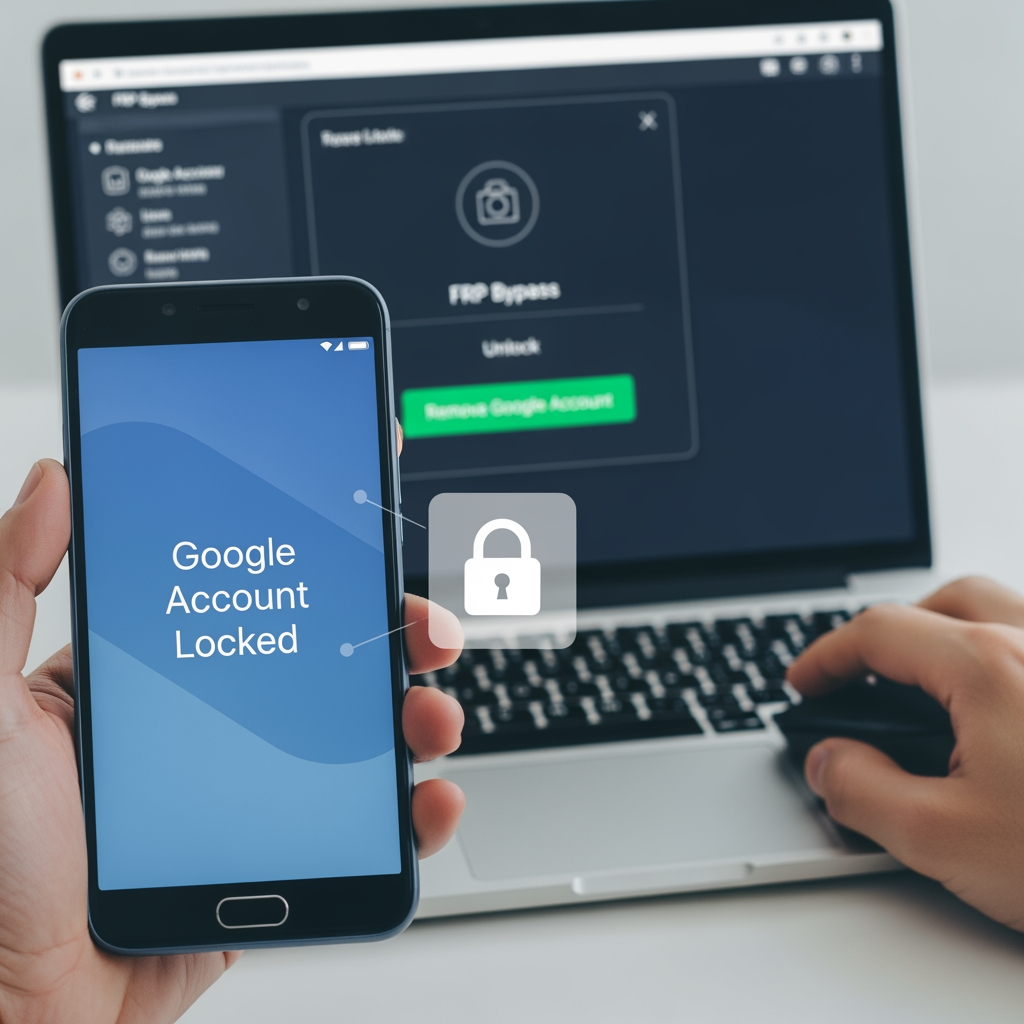
How to Unlock FRP on Android: Complete 2025 Guide
Forgot your Google account credentials? Your Android phone is asking for FRP (Factory Reset Protection) verification and you can't access it? You're not alone—this is one of the most common issues faced by Android users and repair technicians.
In this comprehensive guide, we'll show you how to safely remove FRP lock from your Android device using multiple methods. Whether you own a Samsung, Xiaomi, Oppo, Vivo, or Realme device, you'll find solutions here.
What Is FRP Lock? Why Does Android Have It?
FRP (Factory Reset Protection) is a Google-implemented security feature that locks your Android device after a factory reset. Its purpose is to protect your phone if it's lost or stolen.
When you reset your Android phone to factory settings, Google will ask you to verify the Google account associated with the device before you can use it again. This prevents unauthorized access to your personal data.
Why You Might Be Locked Out
- Forgot Google account email or password
- Bought a second-hand phone with previous owner's FRP lock
- Inherited a phone from a family member
- Phone was reset during repair or troubleshooting
- Attempting to restore phone to factory settings
FRP Unlock Methods: From Easiest to Advanced
Method 1: Use Your Google Account (Recommended)
This is the official and easiest method. If you remember your Google credentials, use them:
- On the FRP lock screen, enter any email address and password
- Once you see "Couldn't sign in" error, select "Create account"
- Follow Google's setup wizard
- After account setup, you should be able to access your device
Note: This method effectiveness depends on Android version and manufacturer updates.
Method 2: Gmail Account Recovery
If you forgot your password, use Google's account recovery tool:
- Visit accounts.google.com/signin/recovery on a computer
- Enter your email address
- Follow verification steps (security questions, recovery email, phone number)
- Reset your password
- Use the new password on your FRP-locked device
Method 3: Factory Reset (If You Have Access to Settings)
If your phone hasn't been factory reset yet and you can access Settings:
- Go to Settings → Accounts
- Remove the Google account you want to unlock
- Then perform a factory reset
- Setup the device with your known credentials
Method 4: Device-Specific Bypass Tools
Different manufacturers have different bypass methods. MobiFirms.com provides tested FRP unlock files and guides for:
- Samsung: Samsung FRP unlock via Odin flashing
- Xiaomi: MiAccount unlock tools
- Oppo/Realme: ColorOS account unlock
- Vivo: Vivo account bypass
- Tecno: Tecno FRP unlock guides
- Infinix: Infinix XOS account removal
Method 5: Firmware Flash (Nuclear Option)
This is the most reliable method but requires technical knowledge:
- Download official firmware for your device from MobiFirms.com
- Use Odin (Samsung), MiFlash (Xiaomi), or appropriate flash tool
- Flash the complete firmware, which removes all account locks
- Boot into setup and add your own Google account
⚠️ Warning: This method erases all data. Only use as a last resort.
FRP Unlock for Specific Android Brands
How to Unlock FRP on Samsung Devices
Samsung devices use Knox security. Here's how to remove FRP:
- At FRP screen, insert a SIM card from a different carrier
- Select "Emergency Call" and dial *#0*#
- Access service menu and reset network settings
- Alternatively, download FRP file from MobiFirms and use Odin to flash
How to Unlock FRP on Xiaomi Devices
Xiaomi phones have Mi Account protection:
- Download MiAccount unlock tool from MobiFirms.com
- Connect phone via USB to computer
- Use the tool to remove Mi Account
- Device will reboot and be unlocked
How to Unlock FRP on Oppo/Realme Devices
These ColorOS devices need special handling:
- Download ColorOS FRP unlock file from MobiFirms
- Place in device's recovery mode
- Flash using SP Flash Tool
- Device will boot without account lock
Frequently Asked Questions
Q: Is unlocking FRP illegal?
A: No, if it's your own device. Unlocking FRP on a device you own for legitimate purposes is legal. Unlocking devices that don't belong to you is illegal.
Q: Will FRP unlock affect my warranty?
A: Official methods don't affect warranty. Using firmware flash tools might impact warranty depending on manufacturer policy.
Q: Can I unlock FRP without losing data?
A: Yes, if you haven't factory reset your device yet. Methods 1-3 allow data preservation. Firmware flashing (Method 5) erases everything.
Q: How long does FRP unlock take?
A: Official methods take 5-10 minutes. Firmware flashing takes 15-30 minutes depending on device.
Q: What if none of these methods work?
A: Contact MobiFirms.com support with your device model. We can provide model-specific solutions for stubborn FRP locks.
Prevention: How to Avoid FRP Lock Issues
- Always remember your Google account credentials
- Set up recovery email and phone number on your Google account
- Before selling your phone, remove your account completely
- For second-hand purchases, ensure seller provides Google account credentials
- Take screenshots of your credentials (store securely)
Download FRP Unlock Files and Tools
MobiFirms.com provides:
- Tested FRP unlock files for all major brands
- Device-specific bypass tools
- Flash tools (Odin, MiFlash, SP Flash Tool)
- Step-by-step video tutorials
- Expert support for complex cases
When to Seek Professional Help
If you're uncomfortable with technical methods or the above solutions don't work, visit a professional Android repair technician. They can use advanced tools and methods to safely unlock your device.
Conclusion
FRP lock is a necessary security feature, but sometimes legitimate device owners need to remove it. With the methods outlined in this guide—and resources from MobiFirms.com—you should be able to unlock your Android device safely.
Remember to only unlock devices you own or have permission to unlock. Keep your Google credentials safe to avoid FRP issues in the future.