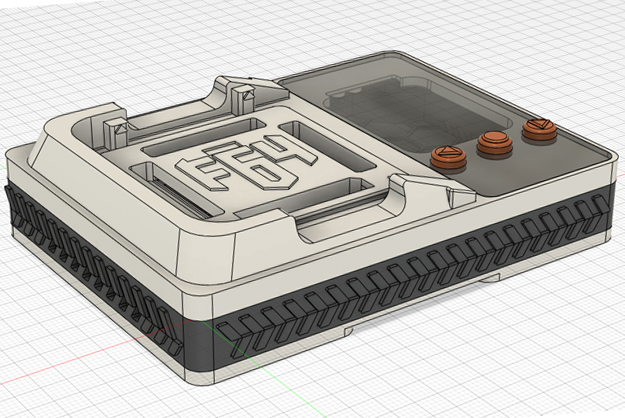
Flash64 Programming Tools: The Professional's Choice for Mobile Device Repair
When it comes to mobile device maintenance, firmware flashing, and professional Android repair, having the right tools makes all the difference. Flash64 Programming Tools has become the go-to solution for technicians, developers, and Android enthusiasts worldwide. Whether you're dealing with bootloop errors, MDM locks, FRP restrictions, or firmware updates, Flash64 delivers reliable, efficient solutions.
In this comprehensive guide, we'll explore everything you need to know about Flash64, its features, capabilities, and how it integrates perfectly with MobiFirms.com's ecosystem of firmware resources and flashing guides.
What Are Flash64 Programming Tools?
Flash64 is a professional-grade software solution designed specifically for mobile device firmware management and restoration. It provides technicians and developers with advanced features for:
- Stock ROM Flashing – Install official firmware on Android devices
- Device Unlocking – Bypass FRP (Factory Reset Protection) and KG locks
- IMEI Repair – Fix IMEI issues and device identifiers
- Bootloop Recovery – Restore devices stuck in boot cycles
- MDM/Knox Bypass – Remove management restrictions
- Firmware Customization – Modify and personalize device software
- Multi-Device Support – Compatible with Samsung, Xiaomi, Vivo, Oppo, Realme, Tecno, and Infinix
Key Features of Flash64 Programming Tools
1. User-Friendly Interface
Despite its powerful capabilities, Flash64 boasts an intuitive dashboard that makes complex flashing operations accessible to both beginners and experienced technicians. The clear workflow guides users through each step of the process.
2. Comprehensive Device Database
Flash64 includes an extensive database of verified flash files, official firmware, and stock ROMs for virtually every major smartphone brand. This ensures you always have access to the correct firmware for your specific device model.
3. Multi-Protocol Support
The tool supports various flashing protocols including:
- Qualcomm EDL (Emergency Download Mode)
- MediaTek DA Mode
- Samsung Odin Protocol
- Spreadtrum Protocol
4. Fast Flashing Speed
Optimized algorithms ensure rapid firmware transfers and installations, minimizing device downtime and improving service efficiency.
5. Advanced Security Features
- Checksum verification for firmware integrity
- Secure boot compatibility
- Digital signature validation
- Protection against corrupted files
6. Real-Time Monitoring
Track flashing progress with detailed logs, error reporting, and diagnostic information to troubleshoot issues quickly.
7. Regular Updates
Flash64 receives continuous updates with new device support, bug fixes, and feature enhancements to stay compatible with the latest mobile technologies.
Flash64 vs. Other Flashing Tools: Why Choose Flash64?
| Feature | Flash64 | Competitors |
|---|---|---|
| Device Support | 5000+ Models | 2000-3000 |
| Update Frequency | Weekly | Monthly |
| User Interface | Modern & Intuitive | Complex/Outdated |
| Customer Support | 24/7 Professional | Limited |
| Firmware Database | Constantly Updated | Outdated Files |
| Flashing Speed | Ultra-Fast | Standard |
| Security Features | Advanced | Basic |
How to Download and Install Flash64 Programming Tools
Getting started with Flash64 is straightforward:
Step 1: Download the Latest Version
Visit the official download page at: https://flash64.com/downloads
Step 2: System Requirements
Ensure your computer meets these minimum specifications:
- Windows 7, 8, 10, or 11 (64-bit recommended)
- Intel Core i3 or equivalent processor
- 4GB RAM minimum (8GB recommended)
- 500MB available storage space
- Stable USB 2.0/3.0 connection
Step 3: Installation Process
- Extract the downloaded file
- Run the installer as administrator
- Follow the installation wizard
- Accept license terms and select installation directory
- Complete the setup and launch Flash64
Step 4: Initial Configuration
- Register your account or log in
- Download the latest firmware database
- Install any required drivers for your specific devices
- Connect your device via USB
Flash64 Programming Tools: Core Use Cases
Use Case 1: Stock ROM Installation
Professional technicians use Flash64 to restore devices to factory settings, removing custom ROMs, malware, and user data. This is essential for device refurbishment and customer support.
Use Case 2: FRP Unlock and Bypass
Flash64 enables secure FRP (Factory Reset Protection) removal on supported devices, allowing legitimate owners to regain access to their phones after factory resets.
Use Case 3: MDM and KG Lock Removal
Enterprise-managed devices can be released from MDM (Mobile Device Management) controls using Flash64's specialized protocols, perfect for second-hand device preparation.
Use Case 4: IMEI Repair
Damaged or corrupted IMEI numbers can be restored to genuine values, ensuring proper device identification on cellular networks.
Use Case 5: Bootloop Recovery
Devices stuck in endless boot cycles are revived by reflashing the complete firmware stack through Flash64's recovery mode.
Use Case 6: Software Updates
Stay current with official firmware releases by using Flash64 to install the latest OS updates directly.
Integration with MobiFirms.com
MobiFirms.com and Flash64 create a powerful partnership for mobile device professionals:
Firmware Compatibility: All stock ROM files available on MobiFirms.com are fully compatible with Flash64, ensuring seamless downloads and installations.
Complete Solution: Combine MobiFirms' extensive firmware library with Flash64's professional flashing capabilities for end-to-end device repair solutions.
Detailed Guides: MobiFirms provides comprehensive flashing tutorials specifically written for Flash64 users, complete with screenshots and troubleshooting tips.
Trusted Resources: Both platforms maintain 100% tested firmware and tools, prioritizing device safety and user success.
Step-by-Step: Flashing Firmware with Flash64
Here's a practical workflow for flashing stock ROM using Flash64:
Prerequisites:
- Device with charged battery (minimum 50%)
- USB cable in good condition
- Latest firmware file from MobiFirms.com
- Flash64 installed and configured
Flashing Process:
- Launch Flash64 and log into your account
- Connect Device via USB to your computer
- Select Device Model from the device list (ensure correct variant)
- Choose Flash Type:
- Full Flash (Complete firmware + bootloader)
- Firmware Only (System partition only)
- Select Firmware File from your downloads or MobiFirms' library
- Configure Options (bootloader, modem, system, etc.)
- Review Summary before proceeding
- Start Flashing – Monitor the progress bar
- Wait for Completion – Device will reboot automatically
- Verify Success – Check device boots into Android normally
Troubleshooting Common Flash64 Issues
Problem: "Device Not Recognized"
- Install correct USB drivers for your device model
- Try different USB ports (preferably USB 2.0)
- Enable Developer Mode and USB Debugging on device
- Restart Flash64 and reconnect
Problem: "Checksum Mismatch"
- Re-download firmware from MobiFirms.com
- Verify file integrity before flashing
- Check available storage space on computer
- Update Flash64 to the latest version
Problem: "Flashing Failed Midway"
- Do NOT disconnect device during flashing
- Use a stable, high-quality USB cable
- Ensure sufficient battery charge
- Try flashing in EDL mode or Download Mode
Problem: "Slow Flashing Speed"
- Use USB 3.0 ports for faster transfers
- Close background applications
- Disable antivirus temporarily (during flashing only)
- Update USB drivers
Problem: "Firmware Not Compatible"
- Verify device model and region variant
- Download correct firmware from MobiFirms.com
- Ensure firmware version matches your device
- Contact support with device details
Security and Safety Considerations
When using Flash64 Programming Tools:
✓ Download from Official Sources Only – Always get firmware from MobiFirms.com or verified channels
✓ Verify Checksums – Confirm firmware integrity before flashing
✓ Backup Data – All data will be erased; backup important files first
✓ Maintain Power – Never interrupt flashing process
✓ Use Genuine Cables – Poor quality USB cables cause failures
✓ Follow Device-Specific Guides – Different brands have unique procedures
✓ Keep Software Updated – Regular Flash64 updates include security patches
Advanced Flash64 Features for Professionals
Batch Flashing: Process multiple devices simultaneously, perfect for bulk device preparation and refurbishment operations.
Custom Firmware Creation: Advanced users can create modified firmware packages with specific configurations.
Automated Flashing Scripts: Develop scripts for repetitive tasks, increasing efficiency in service centers.
Device Telemetry: Gather detailed device information including IMEI, serial numbers, hardware specifications, and software versions.
Backup and Restore: Create complete device backups before flashing, enabling quick restoration if needed.
Network Flashing: Some versions support network-based flashing for remote device management.
Where to Download Flash64 Programming Tools
Get the latest version with all current features and device support:
Official Download Link: https://flash64.com/downloads
Additional Resources:
- Official Website: https://flash64.com
- Documentation & Tutorials
- Community Forums & Support
- Video Guides and Walkthroughs
Flash64 Pricing and Licensing Models
Flash64 offers flexible options:
- Free Trial Version – Limited features for testing
- Professional License – Full features for individual technicians
- Business/Enterprise License – Multiple concurrent users for service centers
- Annual Subscription – Includes all updates and premium support
- Lifetime License – One-time purchase option
Visit the official website for current pricing and promotions.
Frequently Asked Questions About Flash64
Q: Is Flash64 legal to use?
A: Yes, when used for legitimate device repair, unlocking your own devices, or professional service purposes.
Q: Does Flash64 support all Android devices?
A: Flash64 supports 5000+ models covering Samsung, Xiaomi, Vivo, Oppo, Realme, Tecno, Infinix, and many others.
Q: Can I flash devices without data loss?
A: Flashing erases all device data. Always backup important files before proceeding.
Q: How often is Flash64 updated?
A: Weekly updates add new devices, fix bugs, and improve stability.
Q: Does Flash64 work with Mac or Linux?
A: Currently, Flash64 is optimized for Windows platforms. Mac/Linux users can use virtual machines.
Q: What if flashing fails?
A: Flash64 includes recovery mode options. Refer to troubleshooting guides or contact professional support.
Conclusion: Master Mobile Device Repair with Flash64
Flash64 Programming Tools represents the gold standard in professional mobile device flashing, repair, and restoration. Whether you're a technician servicing hundreds of devices or an enthusiast unlocking your personal phone, Flash64 delivers the reliability, speed, and features needed for success.
Combined with MobiFirms.com's extensive firmware library and detailed repair guides, you have everything necessary to tackle any mobile device challenge – from simple firmware updates to complex MDM unlocking and IMEI repairs.
Ready to get started? Download Flash64 today from https://flash64.com/downloads and explore the complete range of stock ROMs and flashing guides available on MobiFirms.com.
Your professional-grade device repair solution awaits.